
GIFs do one thing that nothing in plain text can: they move. When every other message in your text message inbox is static words on a white background, a looping animation breaks the scroll in a way that copy alone cannot.
For most people in a typical text message, the way you express personal touch is by sending a GIF reaction or some type of joke or celebration that would be considered as the emotional touch that can easily be forgotten. The stakes are different for Shopify merchants. Your SMS text comes right next to a personal message from a friend, family member, or colleague. Fighting in that environment with basic text is very difficult.
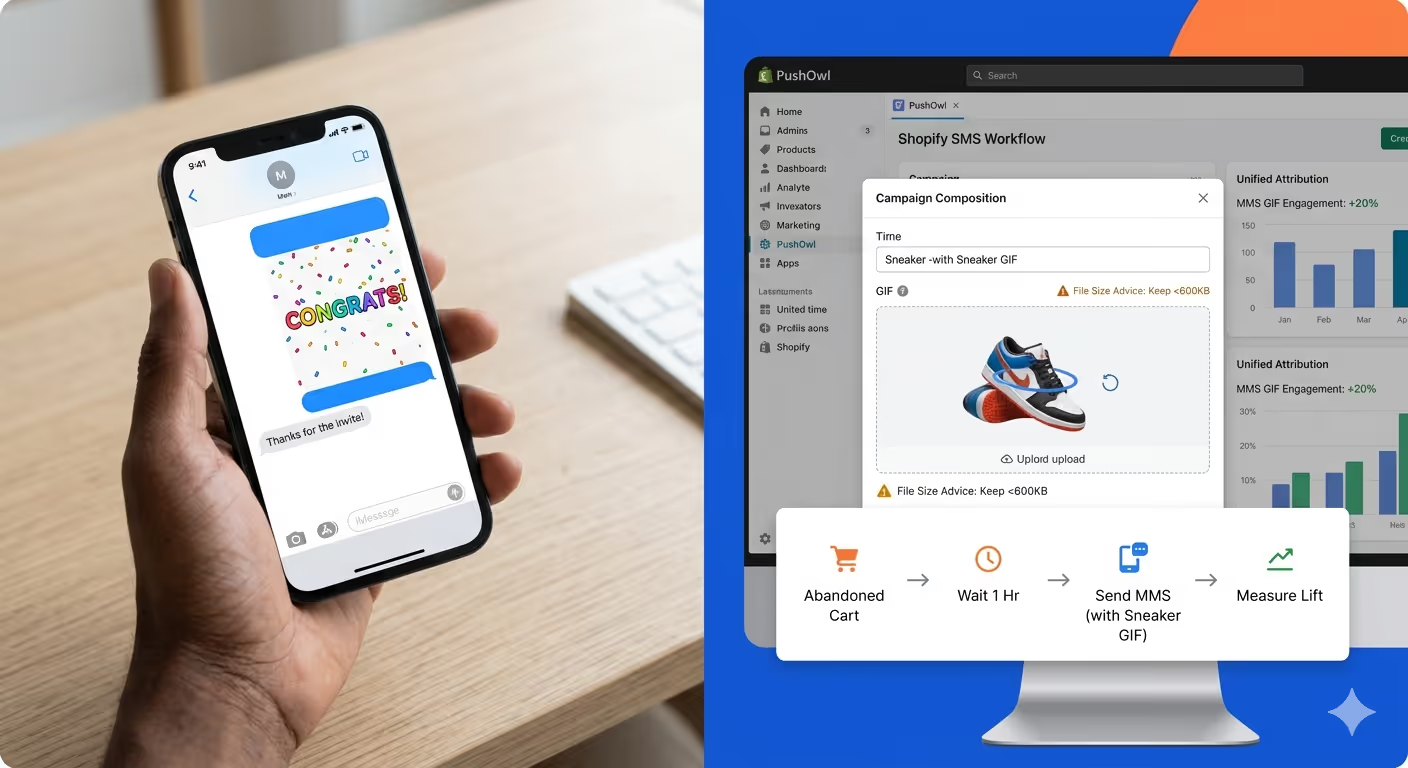
Text messages, the regular format that does not allow GIFs to blend easily within the thread, have 20% lower engagement than MMS messages. That difference in engagement means real conversion lift for Shopify merchants running flash sales, product launches, abandoned cart recoveries, and loyalty campaigns, but only if the GIF is delivered appropriately, sized within carrier payload limits, and used in the proper campaign context.
Here we will talk about both sides of the question. First, the practical steps for sending GIFs via text on iPhone and Android. Next up, the business application, examples of how ecommerce brands leverage MMS GIFs in their SMS marketing campaigns, what it looks like at scale, best practices, and how PushOwl helps you execute it within your existing Shopify SMS workflow.
The Technical Difference Between SMS and MMS
Before you learn how to send a GIF in text, we need to first understand why even the simplest SMS protocol does not include this means of expression and what that distinction means, when you're texting your own friend or launching a campaign to 20,000 subscribers.
Short Message Service (SMS) is simply a text, with no media files, and supports only up to 160 characters per message segment. Oftentimes, when you try to send a GIF via SMS, one of two things happens: either it turns into a link that the recipient has to tap in order to view it, or it just sends as a static, non-moving image. Neither one provides what the sender visualizes.
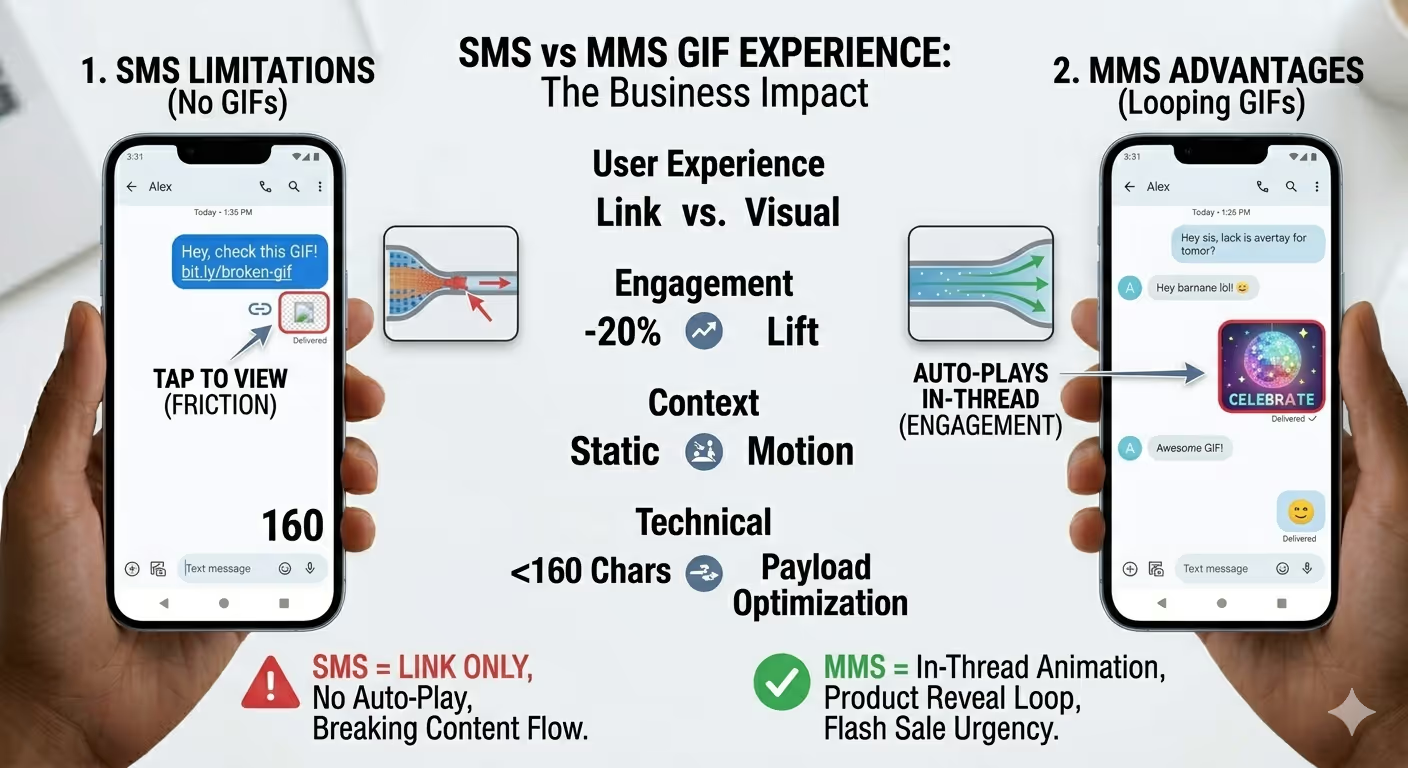
Multimedia Messaging Service (MMS) is the multimedia version of SMS, which allows images, GIFs, short video clips, and audio files to be sent directly in the message thread. So when you send a GIF via MMS, it animates automatically in the conversation, no tap, no browser redirect, no dividing line between message and visual experience.
For marketers, the implications of this are important. GIFs that come to you as an SMS are gone because they render as a link that will force the person to take action first. A GIF sent with MMS does not need anything; it is already playing by the time the message is opened. The difference between a link and an in-thread animation is the difference between a campaign that works and one that is ignored, for animated promotional visuals, product reveal loops, flash sale countdown banners, etc.
Technical Limits To Know Before You Send:
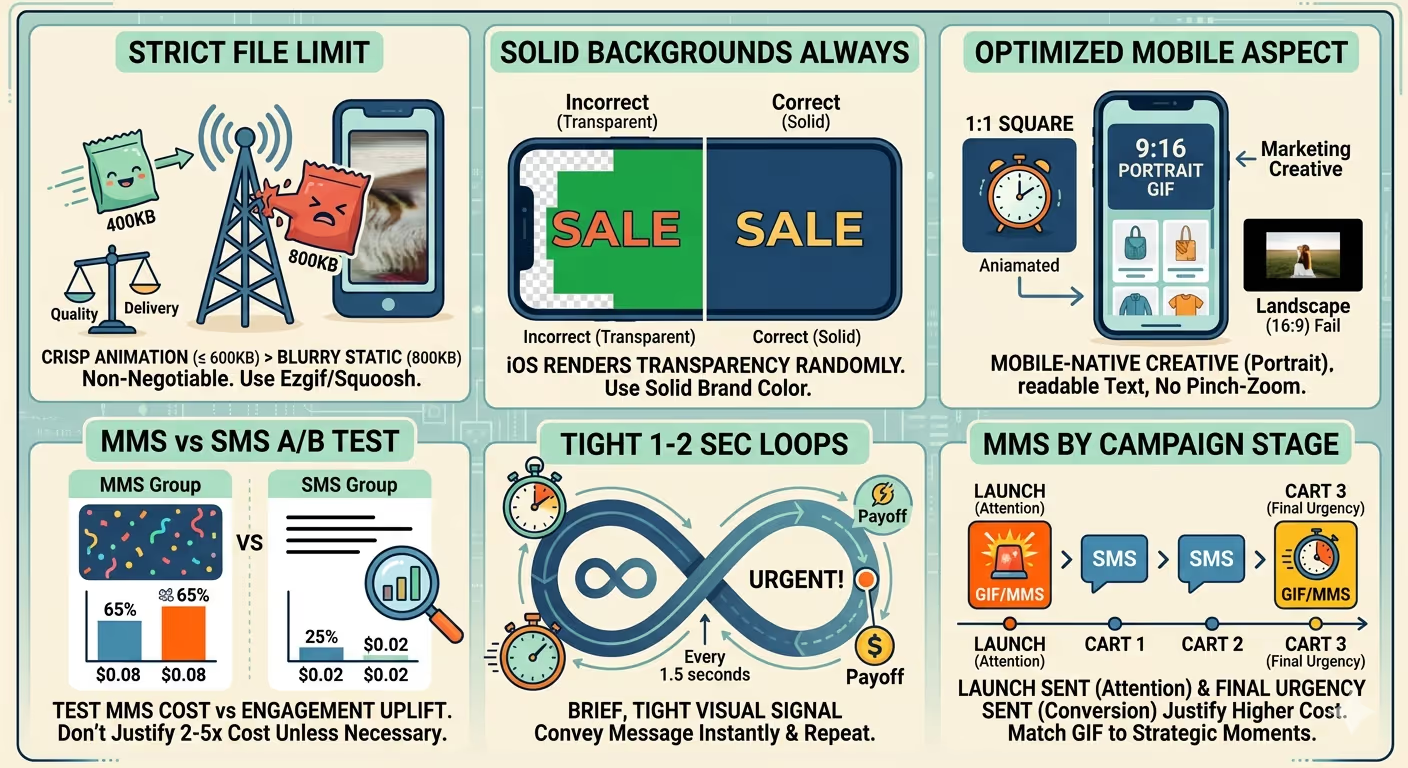
- To be able to use reliably for most carriers, GIF files must be less than 600KB. Carrier infrastructure may compress, distort, or even automatically convert files above this threshold into a static image.
- On an iOS device, this transparent background in GIFs does not render properly; it shows up as a random solid color that makes the image look like something is broken or unintentional.
- Free animated emoji get a lot of attention, but MMS costs 2–5x more per send than SMS on most platforms, so a GIF campaign needs real justification for conversion before it goes out.
How to Send a GIF via Text on iPhone
There are many ways to send GIFs using the built-in Messages app on iPhone, but depending on whether you're texting an iPhone user over iMessage or an Android or cross-platform recipient over MMS, you'll encounter a slightly different experience. The route you take is based on whether your GIF gets animated in-thread, or it ends up somewhere less practical. Hence, you should be aware of where your GIF is going:
Using iMessage's Built-In GIF Search
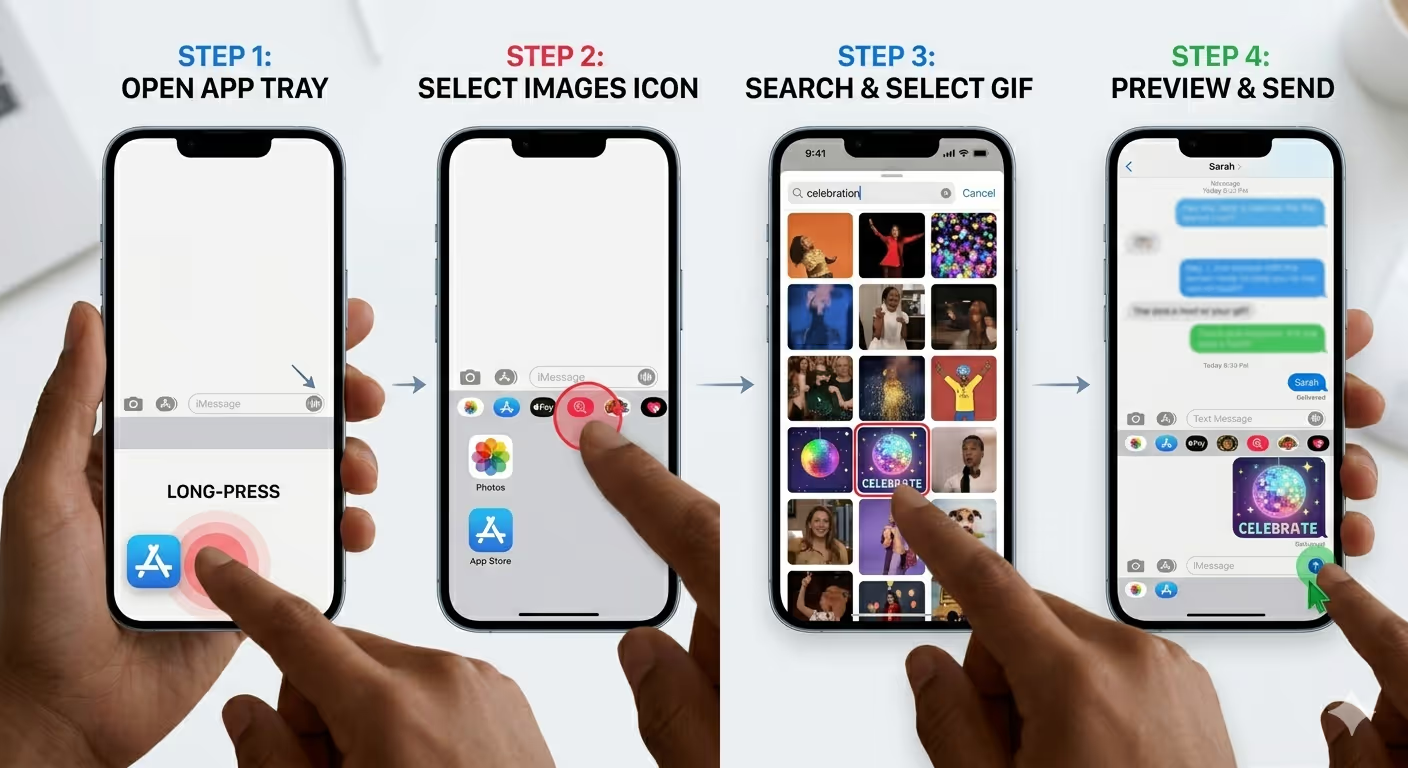
In Messages, Apple has a built-in GIF search ability right in the app itself. It is in the app tray beneath the text field. This is the quickest and easiest way to send an animated GIF on iPhone.
Step 1: First of all, open the Messages App and create a new chat or select an existing one.
Step 2: Long-press the small plus icon or the App Store icon on the left side of the text input field.
Step 3: Then, tap the images icon (the search with a hashtag icon) from the app tray that appears.
Step 4: Enter a search term, "celebration," "burning," or "thank you," or even like "sale," and scroll through the checks feed.
Step 5: Select the GIF you want to share, and it will be directly attached to a message. Just hit the send arrow to which you want to send.
Note: This is formatted cleanly when sending to another iPhone user over Apple's iMessage (blue bubble conversations). The GIF actually animates in the thread, both for the person sending it and for the recipient. For green bubble recipients, Android users, or any recipients via SMS or MMS, the experience varies depending on their carrier and device. That GIF can either come in the form of a static image or as a tap-to-view teaser that will not animate in-thread.
Using GIPHY or Tenor on iPhone
When it comes to most used sites for GIFs outside of Apple's built-in library, GIPHY and Tenor top the list. They both have iPhone apps, and they both let you share GIFs in Messages.
- Using the GIPHY app: search for the GIF, tap Share → Messages. That will start a new message where the GIF is attached as an MMS.
- Using the Tenor: Same flow. Search, select, tap the share icon, and choose Messages.
- Using Browser: Copy the GIPHY URL or Tenor URL of the GIF. Paste it into a Messages conversation. Deliver this as a link preview, and not an in-thread animation. This means that the recipient gets a tap-to-view card instead of a looping GIF.
The method using the GIPHY or Tenor app is less cluttered for personal texting. It varies by carrier, but results are still confused for cross-platform sends, iPhone to Android.
How to Save and Send a GIF You Have Downloaded on Your iPhone
If you saved a GIF to the Photos app on your iPhone or received one through another app, you can add it directly into a text.
Step 1: Launch Messages and initiate a conversation
Step 2: Click on the plus icon, choose Photo Library or Photos
Step 3: Now, find the GIF in your Library. It will show a little "GIFf" tag in the corner
Step 4: Select it and send
File size matters here. Sending GIFs larger than 600KB may cause the Messages app to compress them before sending, resulting in an animation of lower quality or a static image if the recipient is on certain carriers.
Sending iPhone MMS GIF via a Business SMS platform
The above personal methods are only suitable for marketers sending GIFs to a handful of customers; none will work if you want to send personalized GIFs at scale. You are not able to launch your MMS campaign from the Messages app on your iPhone. A scalable business SMS marketing requires a dedicated solution that manages carrier routing, compliance, file size validation, and delivery reporting.
The workflow on a business platform is simple:
Step 1: Upload your GIF as a media file through the campaign builder and attach it to the MMS campaign.
Step 2: Choose your audience segment and send from the business numbers (toll-free number or short code that has been registered under A2P 10DLC regs).
The GIF automatically plays in-thread for any of those recipients who can receive MMS over a carrier and device that supports it, which means you don't have to do anything except watch the magic unfold in real time.
How to Use GIF via Text on Android
Because Android manufacturers and carriers use different messaging apps, the GIF-sending experience is a little more fractured than it is on iPhone. The core MMS ability is the same. Android has been able to send GIFs in MMS for about as long as Google Messages itself has existed, but the UI for searching and sending varies from phone to phone.
Google Messages (Default, Most Android Phones and Tablets)
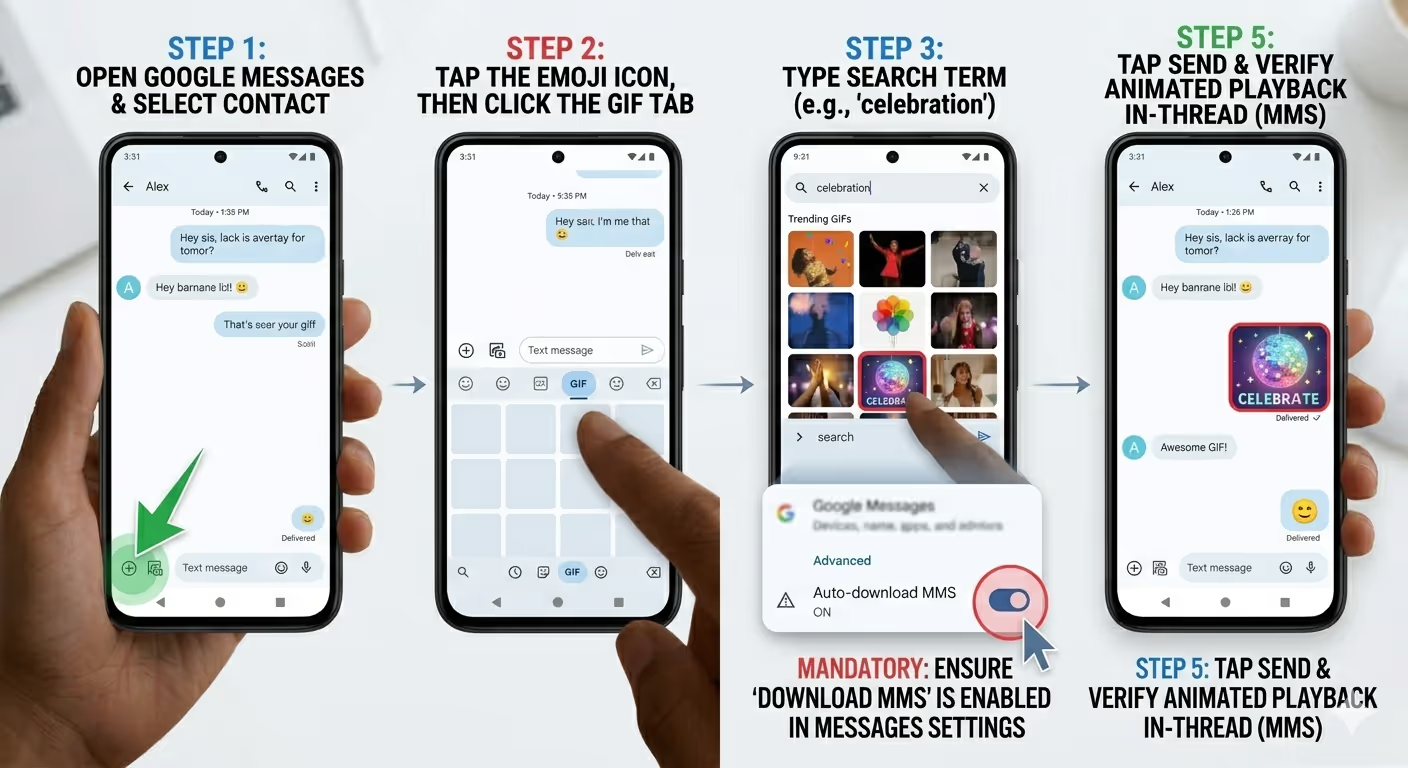
Google Messages is the default SMS/MMS app on most Android phones, including Pixel devices and many Samsung and Motorola handsets running recent Android versions.
Step 1: Open Google Messages and create or open a conversation
Step 2: Tap the emoji face icon at the left of your text field (to bring up the emoji and GIF panel):
Step 3: Click the GIF tab in the top section of the panel
Step 4: Type a term into the search bar or look through the nature of trending options of GIFs.
Step 5: From there, tap the GIF to attach it to your message, then send
For this to work, you need MMS to be enabled in your settings. If MMS is disabled for you (whether that's manual or going through your carrier settings), the GIF won't send, or it will be presented to the recipient as a link.
To make sure it is enabled, visit Messages Settings → Advanced → Auto-download MMS.
For GIFs with two Android users on carriers that support it, animated GIFs automatically play back in the conversation thread, frictionless. The experience sending to an iPhone user varies by carrier: some receive the GIF as an animating MMS, others a tap-to-view link.
Using Samsung Messages
Samsung has its own Messages app that ships on Galaxy devices, and while there are some interface differences between it and Google Messages, the two actually use the same MMS GIF capability.
Step 1: Open the Samsung Messages and start a new conversation
Step 2: Press the + icon or click on the gallery tab next to where you type
Step 3: In the media selector, look for the GIF button. In some cases, it appears as a tab in the image picker or a button for some standalone devices
Step 4: Find your GIF and send it
Samsung messages GIF download fails or becomes static if the GIF size is bigger than 600KB.
If you are sending a GIF document that has been downloaded instead of creating it from built-in options, make sure to check the file size before attaching it. Tools like Ezgif.com will let you resize and compress GIFs in the browser without downloading extra software (for free).
How to Download and Share a GIF on Android
If you've downloaded a GIF file to your Android device, whether a brand asset you had saved to a dedicated directory on your smartphone, an export from your design tool of choice, or simply an image you saved, that specific GIF can be attached directly in a text message via the default media attachment flow.
Step 1: Open your messaging app and click the attachment (clip or plus) icon.
Step 2: Click on the gallery/files and locate the GIF
Step 3: Choose the GIF and click on " Attach " to send
And the 600KB rule also applies to Android. If a GIF is too large, the messaging app or carrier will automatically compress it before delivery, and usually this results in the animation being so degraded that its visual punch is gone.
How Ecommerce Brands Use GIFs in Text Message Marketing
The personal texting use case in the example above is pretty simple. MMS GIF marketing is really a cutting-edge world for most brands, and where many Shopify merchants are just scratching the surface in their business.
What Is MMS Marketing?
For marketers, sending a GIF via text at scale means sending MMS campaigns through an SMS marketing platform. The individual devices do not scale; the GIF you send from the Messages app on your iPhone cannot go to 15,000 subscribers. MMS marketing is done through a business SMS platform. Simply upload your media file, attach it to the campaign or automation, and shoot it at scale from an authority-registered system number.
MMS approach uses GIFs sent directly in the message thread, which animate automatically when the recipient opens the message. A looped GIF is able to continue presenting its visual message long after the conversation has been opened, and thus, a single well-designed GIF can get multiple exposures from a single send, unlike most static product images.
MMS GIF campaigns perform better than regular SMS when used in the right context. They have higher open rates, click rates, and time-in-message metrics, especially for more visual categories of products such as fashion, beauty, food and beverage, and home goods, where the product experience is based on pictures.
5 Use Cases of GIFs in SMS & MMS Campaigns for Ecommerce
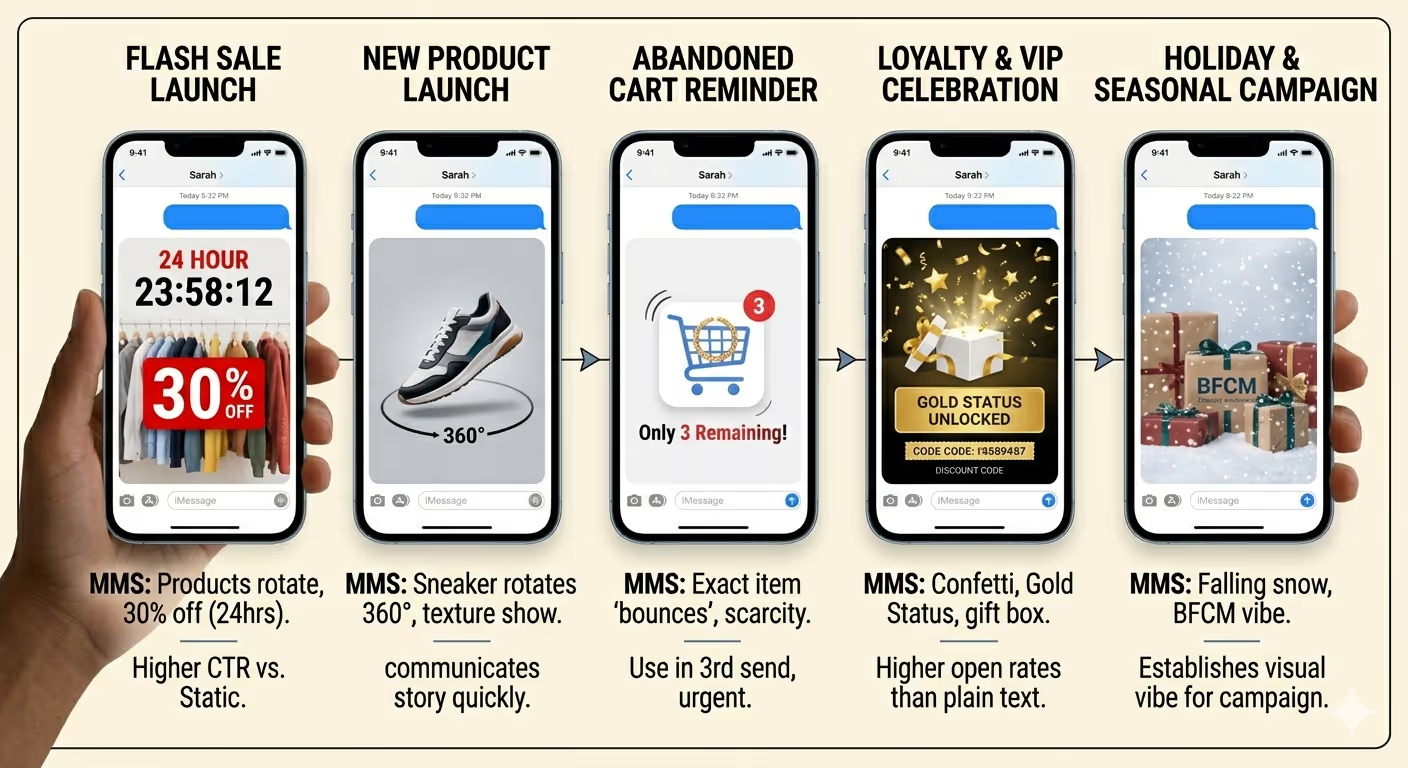
With GIFs, motion enters the world of messaging. They capture attention and communicate urgency, value, sentiment, and passion greater than static text or images ever will.
Use Case 1: Flash Sale Launch
How it works: An animated countdown clock ticking down, sale text zooming into place, or a scrolling grid of discounted products, all packaged in one MMS upon flash sale campaign launch.
- A static image says "sale." An animated GIF illustrates the sale happening, which creates a sense of urgency that a static creative cannot.
- Send it at launch through PushOwl's SMS Campaign builder, along with a plain-text and an optional mid-campaign follow-up SMS to those who have not yet clicked.
- If there is a 5-second animation and GIF, we should keep it as tight as possible. In this case, for example, it would perform better to make the first loop only show the sale headline (1-2 seconds) than having them wait for 5 sec in order to see what the payoff is.
- For example, a clothing brand sends an MMS at 10 am with a GIF of products rotating over, "30% off for 24 hours". Measured click-through rates on the GIF MMS are significantly greater than a static image send of equivalent content.
Use Case 2: New Launch
What it is: An animated GIF looping an object or product coming in side shot, unboxing, or about to come in from the other side, delivering the product story in two seconds, which can be done with a minimum of 5 static images.
- In the beauty, accessories, and fashion categories, a product visual is a product's biggest purchase driver. For example, an animation that demonstrates texture or movement communicates what a flat shot cannot.
- This is great for drops of limited edition products where the image alone is effectively communicating the launch excitement.
- Limiting the frame count and reducing the color palette will keep your product GIF less than 500K. An uncompiled two-to-three frame loop weighs in at 400KB but offers a superior in-thread experience than a debt-heavy animation at 800KB that the carriers compress poorly.
- For example, a sneaker brand serves up an MMS of a new color-way that rotates 360 degrees in two seconds. Because the rotation shows how the product looks from every angle, it results in higher "tap to shop" than a single hero image could ever do.
Use Case 3: Abandoned Cart Reminder
How it looks: A GIF of the item in the consumer’s cart un-purchased and "bouncing" in a cart icon, a countdown timer counting down on an offer only for a limited time, or an animated arrow pointing to the items left behind with the correct copy, creates a form of urgency for the customer.
- One of the best examples of creating a sense of urgency for a limited-time offer within an abandoned cart context is a flash, attention-grabbing GIF. Instead of just saying that time is tight, we can show it as a countdown timer GIF showing the hours left.
- The GIF is most effective in the third send of a three-part abandoned cart sequence when the discount is on the table, and urgency is real. An MMS GIF in the first cart recovery sends the one where they get no discount, wastes all that additional cost without a corresponding conversion lift.
- Fire the GIF MMS version of cart recovery to your highest AOV abandonments. Plain SMS recovery works well with low-value carts but at a lesser cost.
- For instance, an accessories brand sends a last MMS abandoned cart with a looped GIF of the exact item bouncing off an overlay that says "Only 3 remaining". The version of GIF MMS has a higher recovery rate than that of its text equivalent when they are at the same stage of the sequence.
Use Case 4: Loyalty and VIP Celebration
What it does: A GIF celebrating confetti, gift-box opening, stars, and balloons combined with a birthday discount; or notification of VIP tier status upgrade, or loyalty milestone reward.
- Loyalty messages with celebration GIFs do what promotional GIFs cannot do. They give the customer a feeling of achievement. Confetti animation in a birthday discount MMS turns an otherwise simple automated copy into something more interesting.
- A boutique clothing store might send an MMS with a GIF of a digital gift box opening, along with a welcome reward and a limited-time discount code, essentially making the birthday promotion feel like receiving a gift instead of receiving advertising
- Know the brand tone to match the GIF. Getting a ton of confetti in your birthday wish is off-brand for a luxury brand. For example, a simple animation of a colourful gift ribbon being tied or a clean kinetic text loop reading "happy birthday" would be well-suited to the intended look and feel while still taking advantage of the engagement that an animation brings
- For example, a skincare company sends a top-tier customer an MMS with a short animation that says, "You've unlocked gold status." VIP tier upgrade open rates on the MMS version are greater than 50% when compared to an equal plain-text email send
Use case 5: A holiday and Seasonal campaign
How it appears: Holiday-themed GIFs, falling snow, fireworks, wrapped gift boxes, flowers blooming in spring, Valentine & Mothers Day, and end-of-season sales, are used to frame BFCM visually.
- Plain SMS does not carry campaign identity as far as seasonal GIFs do. A recipient who sees a falling snow animation in their set in December is recognizing the seasonal moment before they read a single word of copy
- Holiday GIFs excel as the first visual block in a multi-touch campaign sequence, establishing the holiday vibe for the first MMS, then with predictable SMS for urgency that doesn’t require the extra media expense.
- If your seasonal GIF is well designed, it can be used across multiple campaign sends within the same promotional window: BFCM launch, mid-sale update, and sale-ending alert, without being repetitive, are all doing an entirely different urgency-evoking job.
- For example, a home goods brand has a falling-snow GIF as the visual header for each December send. The add-on animation is tied to the brand's holiday campaign, boosting brand recall among subscribers and second-open rates while within the campaign window.
MMS GIF Best Practices for Shopify Merchants
These five use cases work just fine when GIF is done right. Below is the tactical and strategic framework differentiating MMS campaigns that have impact from the ones falling flat alongside their higher per-send costs.
1. Ensure File Size ≤ 500-600KB (Non-Negotiable)
MMS media files are subject to a strict upper bound incurred by carrier infrastructure. GIFs larger than 600KB are compressed on delivery, which reduces the animation quality and can even cause artifacts or display the GIF as a static image.
Use compression tools like Ezgif.com or the Squoosh size file viewer app to minimize issues before upload. The statistics show that a 400KB GIF, which animates crisply in each inbox, is more worthy and effective than an 800KB GIF that arrives as a blurry static image on half your recipient list.
2. Avoid Transparent Backgrounds Always
iOS renders GIFs with transparent backgrounds randomly. Rather than showing your own brand color or a clean white background behind the animation, iOS fills in all of those transparent areas with a random solid color, making the GIF appear broken, unintentional, and off-brand.
To view full-size GIFs, they should always be exported with a solid background color. Whatever is going to work, white, black, or your main brand colour, but not with a transparent background.
3. Limit Animation Loops to 1-2 Seconds
For in-thread GIFs, one to two second loops are the sweet spot. When someone has to wait for the payoff of long animations, then most recipients will not tolerate it in a mobile inbox context.
It is the very brief, tightly looped signal relying on visual language within one second and then repeating that instantly brings its value, and the message is conveyed to the consumer properly.
4. A/B Test MMS vs SMS For Your Own Audience
MMS can be anywhere from 2-5x the cost to send than regular SMS. However, that engagement uplift from a GIF is not universal across all audiences and all campaign types.
Test MMS against your first two to three campaigns that fall under each promotion space in an A/B test to begin. Do not commit full send on MMS until you run these tests. Some audiences on lower-data mobile plans or in markets with less reliable MMS carrier support convert equally well on plain SMS, making the extra cost unjustifiable for that segment.
5. Focus on the Mobile Inbox, Not the Desktop Preview
All the GIFs in an MMS campaign are rendered on a mobile screen, within a native messaging app, and just like any mobile phone is portrait.
Ensure your GIFs are at either a 9:16 or 1:1 size ratio. Make the text you use large enough to be read at a mobile screen size without needing to pinch zoom. Marketing GIFs designed in landscape or with small supporting text look awkward in the mobile message thread and underperform compared to mobile native creative.
6. Match the GIF to the Campaign Stage
MMS does not add the same benefit to every stage of a campaign sequence. Up front, GIFs justify their higher per-send in the launch send, where attention getting is goal number one, the final urgency send, where countdown framing creates true conversion pressure, and celebration or loyalty moments where the animation builds emotional resonance.
You only need one MMS in a sequence to punch up the impact of the message; using GIFs in every send wastes money and impact.
How PushOwl makes MMS GIF for Shopify SMS Campaigns
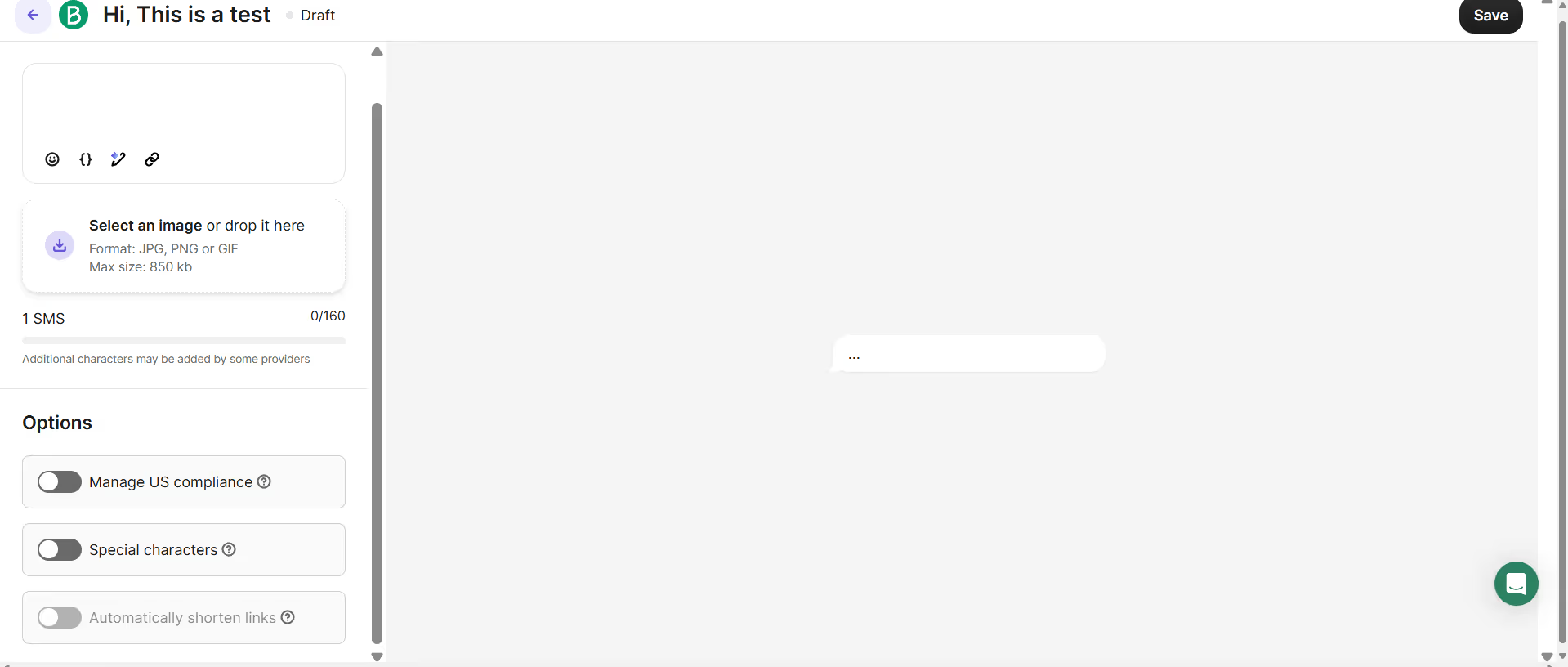
Shopify merchants who are prepared to graduate from the personal texting use case into the business marketing application can use PushOwl's SMS campaign builder, which natively supports MMS with direct upload of GIFs and images to be uploaded in the campaign editor without needing third-party media hosting or a tedious manual calculation on file size before upload.
1. Directly upload a GIF file in the campaign builder
You can add your GIF file to any SMS campaigns or automation flow within PushOwl's editor. The GIF previews in the send composer as it will appear in your subscriber message thread, letting you see what subscribers see before the campaign goes out.
2. Intelligent file size advice
PushOwl notifies you if the GIF or image being uploaded will exceed carrier size limits when the campaign is about to be sent. Instead of noticing a delivery quality problem in your post send report, you notice it when composing, with enough time to compress and re-upload.
MMS GIFs are not just available within one-time broadcast campaigns, but they can also be used in automations as a part of all the campaign types in PushOwl. The animation could be added to your abandoned cart SMS automation, your back-in-stock alert, your flash sale sequence, or your win-back flow, making it part of the engine that is operating in the background and driving ongoing automated revenues rather than just another one-off creative effort.
3. PushOwl MMS offering available in the US and Canada
PushOwl's MMS capability is on hand for customers across the United States and Canadian markets, with delivery routed through Brevo's globally compliant carrier infrastructure, smartly timing delivery directly into the automation logic that is built in.
4. A Unified Attribution
All MMS campaigns and automations feed into the same cross-channel attribution dashboard as your email, web push, and SMS campaigns on PushOwl, so that you know if the GIF MMS version of your abandoned cart recovery outperforms its plain SMS counterpart without hopping around between tools or reconciling different reports.
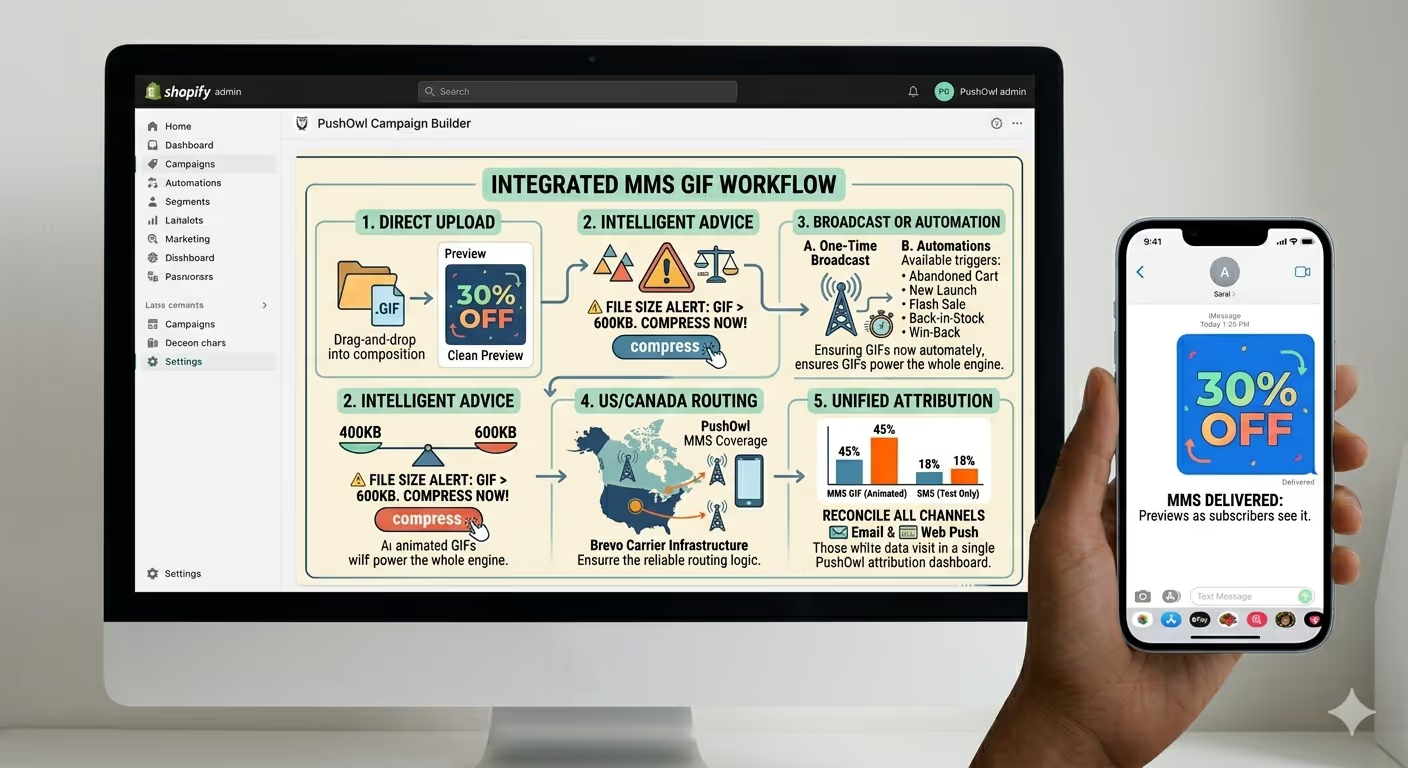
What this means in practice is that you can incorporate GIFs into your Shopify SMS strategy without needing to implement a separate MMS platform, build a new vendor relationship, or create a new budget line item. File upload in the same interface you are already using for every other SMS campaign.